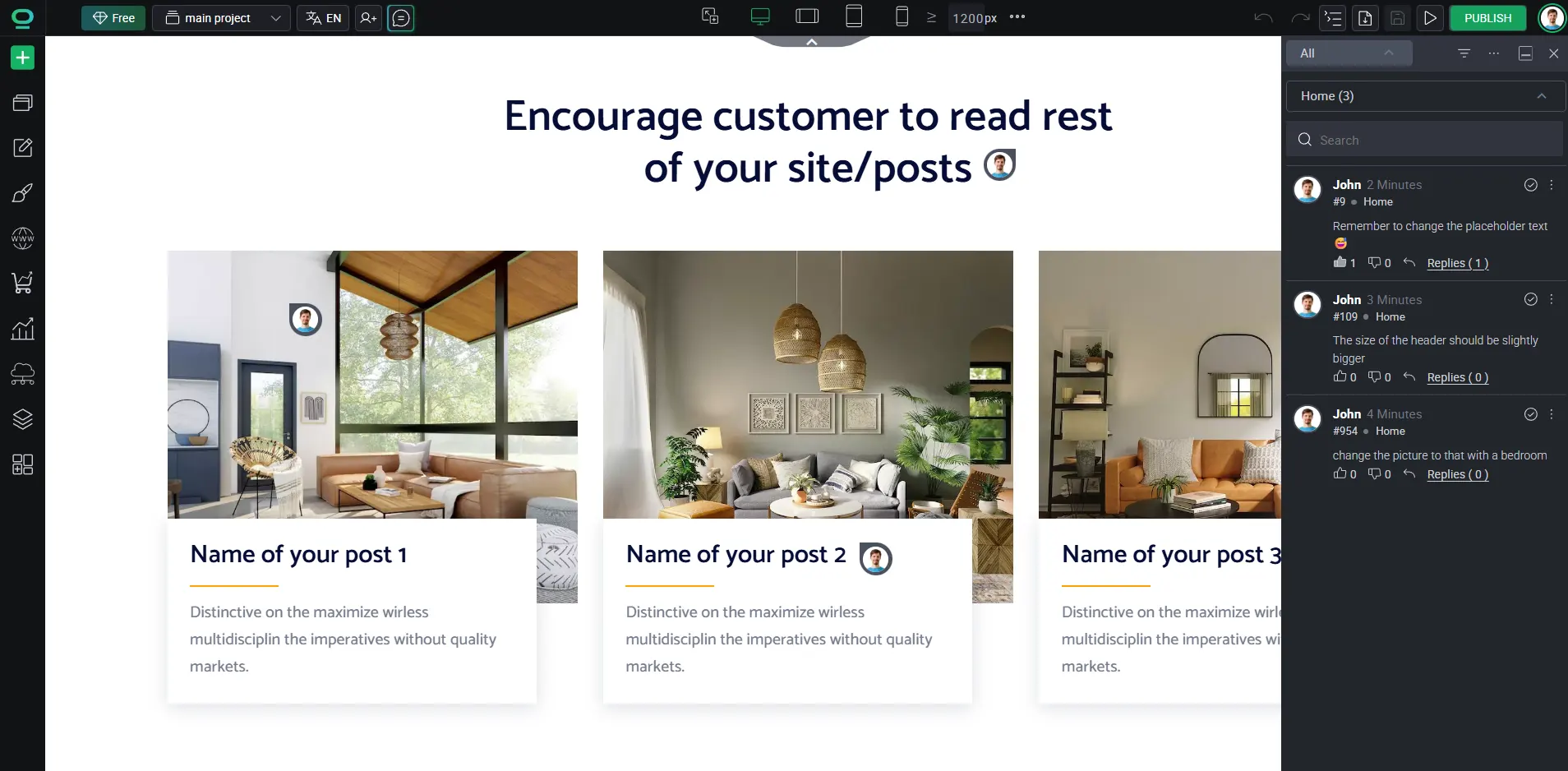
How to add Comments in BOWWE project
How to enable comments

Comments inside the project were designed to help you work with your collaborators directly within the project and quicken the correction process.
To enable comments:
To enable comments:
1
Go to your project.
2
Select Comments icon in the top bar.
3
With the comment mode enabled you can see all previous comments and add your own. The comments are assigned to the subpage they were added to.
This will greatly enhance overall communication between designers and developers or bloggers and proofreaders.
Learn more
Role management in BOWWE
How to add comments
With comment view enabled you can simply click on the part you wish to discuss and it will leave a visual indicator in that selected place for all to find.
With the comment selected you can create threads and upvote helpful insights.
FAQ
Who can add comments?
Every member and guest has the ability to post comments inside every project. They just have to be invited in the first place.
How many comments can I post?
That depends on the pricing plan of the project.
Free plans allow only 5 comments and to add new ones, the old ones need to be deleted. Standard and Advanced allow for 10 and 50 comments respectively and Professional has unlimited amounts.
Is there a comment history?
Yes, everytime you enable comments, the full history gets displayed on the right side of your screen.
Can I mention someone in the comments?
Yes, you can use the `@` symbol and the list of available collaborators will be displayed for you to choose from, or you can simply write down their name
Can I edit or delete my comment?
Yes, you can. Simply open additional options of the comment in the top right corner and select either Edit or Delete.
Can I mark comments as done?
Yes, when you want to close a comment, simply click on the checkmark symbol in the top right corner of that comment. It won’t be displayed in the current comments but you can always use a filter to show closed comments if you wish to view them again.
Congratulations!
Now you know how to use comments!