Role management in BOWWE
What you’ll learn:
What is role management
List of roles
How to add new roles
How to invite people to project
How to manage project users
Members pricing
What is role manager
Role manager is a feature designed to help with distributing specific tasks between multiple people for one project. Dedicated to both small and large businesses, this will help you with maintaining your projects and sharing responsibilities within your team.
You could, for example, have a developer with access to all pages with the ability to edit content and a blogger, who’d only have access to blog articles, where they could edit the text. Thanks to the roles, you can entrust your project to multiple people to fill in every aspect of website maintenance and growth.
You could, for example, have a developer with access to all pages with the ability to edit content and a blogger, who’d only have access to blog articles, where they could edit the text. Thanks to the roles, you can entrust your project to multiple people to fill in every aspect of website maintenance and growth.
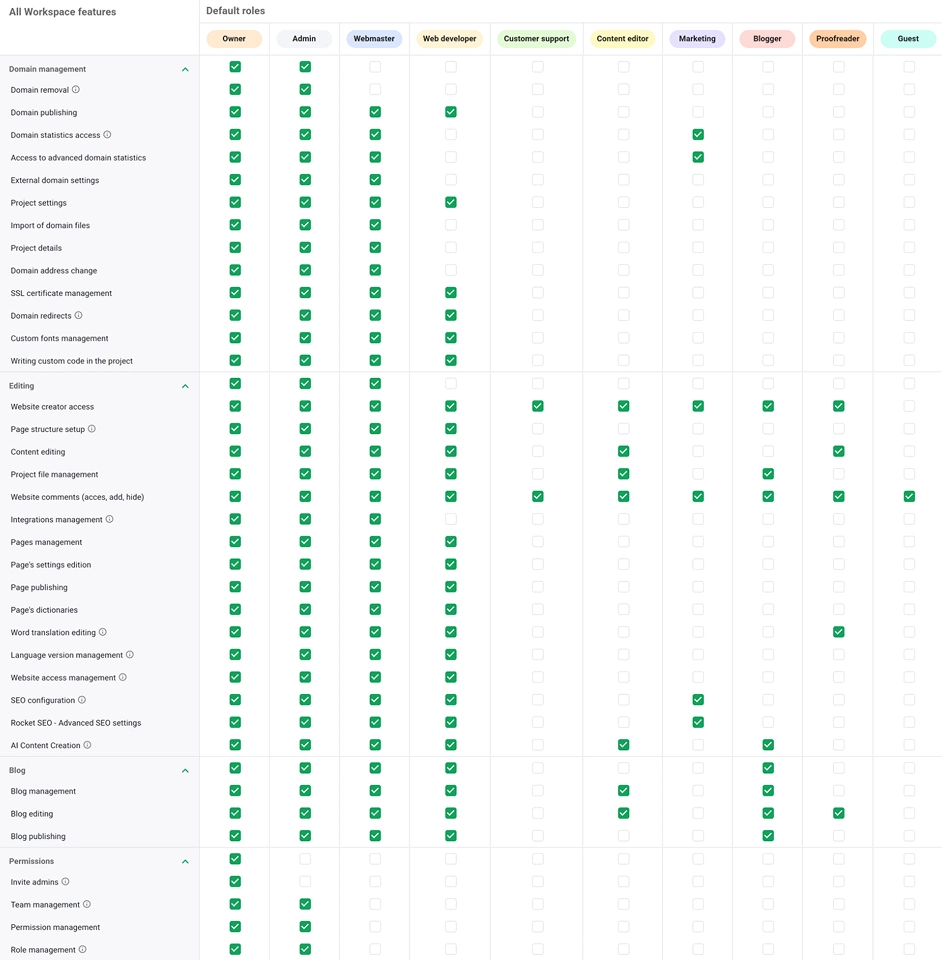
Default roles
- Owner - the person who created the project and has all permissions.
- Admin - is the role for project leaders. It has most of the permissions, but cannot invite other admins.
- Webmaster - for people specializing in building the website. They have most of the permissions, but can’t manage permissions or remove the project.
- Web developer - it’s the main role to create and manage content of the project. With access to Editing and Blog management, and partial access to domain management like changing SSL certificate or domain redirections.
- Customer support - a role for the feedback giver. Can view and comment on the project via the creator page, but cannot edit the content.
- Content editor - for people whose sole focus lies in what’s being delivered via website. They have partial page editing, but cannot publish those changes.
- Marketing - for SEO modules. Full access to domain statistics and can edit SEO properties.
- Blogger - this one is pretty self-explanatory. Full access to blog editing.
- Proofreader - to make sure everything is written correctly. They can edit and translate texts.
- Guest - can only leave comments in the project.
The full list of roles is available on the Manage Members page in your Dashboard.
Learn more
How to add Comments in BOWWE Project
How to add new roles
You can create your very own role with specific permissions to give to your collaborators.
1
Open your dashboard.
2
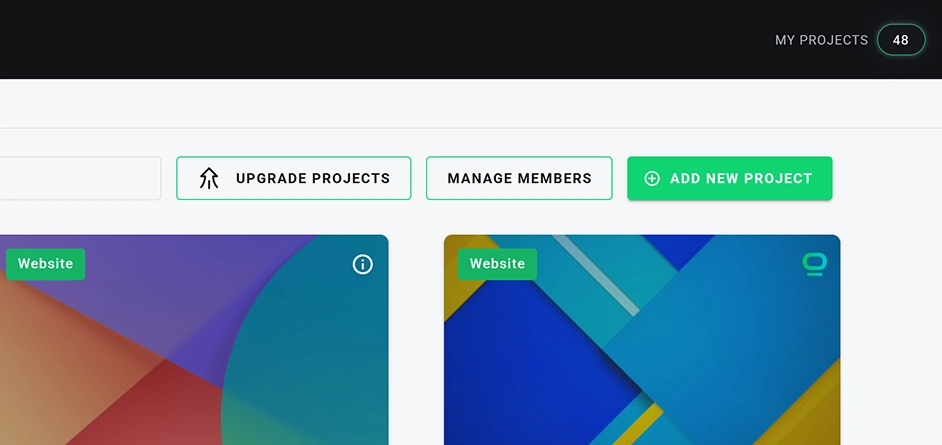
Open Manage Members.
3
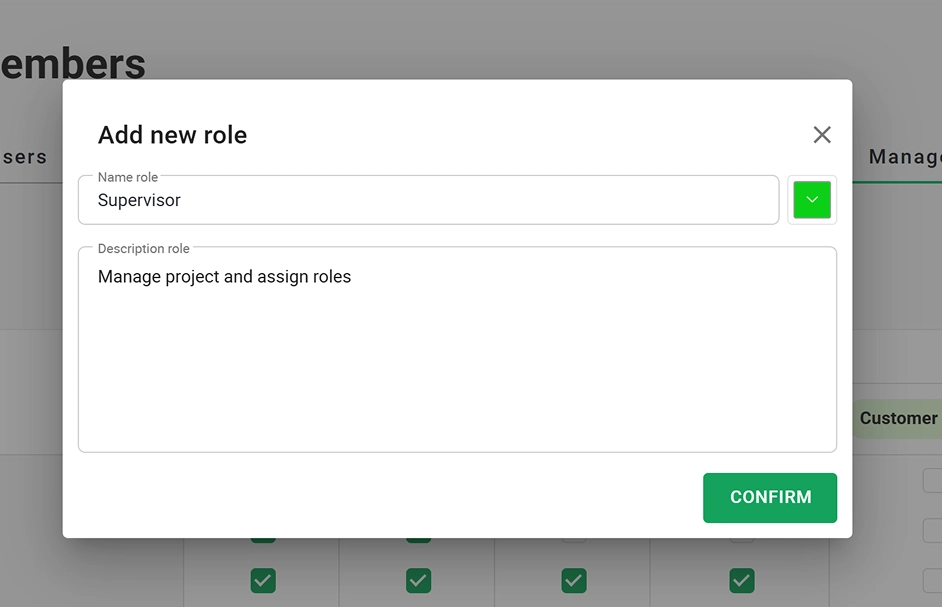
Click the Add Role button.
4
Adjust your parameters (name, color and description).
5
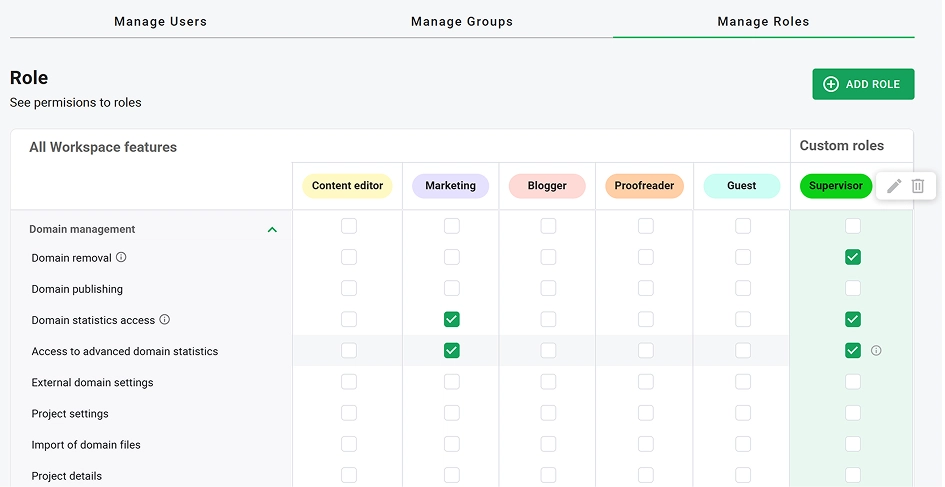
Scroll to your custom role at the end of the table.
6
Open the role’s additional options and select Edit.
7
You can now freely select any and all permissions at will.
How to invite people to project
1
Open your project.
2
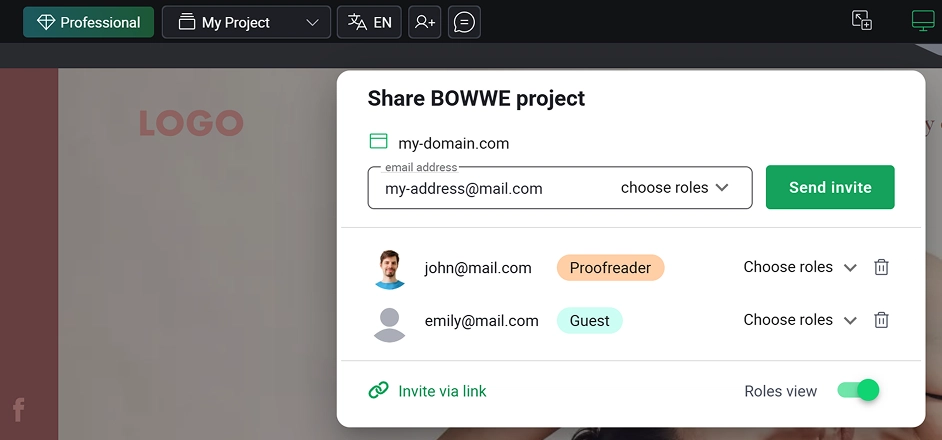
In the top bar, select Invite members to this project.
3
Provide the BOWWE account e-mail of the person you wish to add.
4
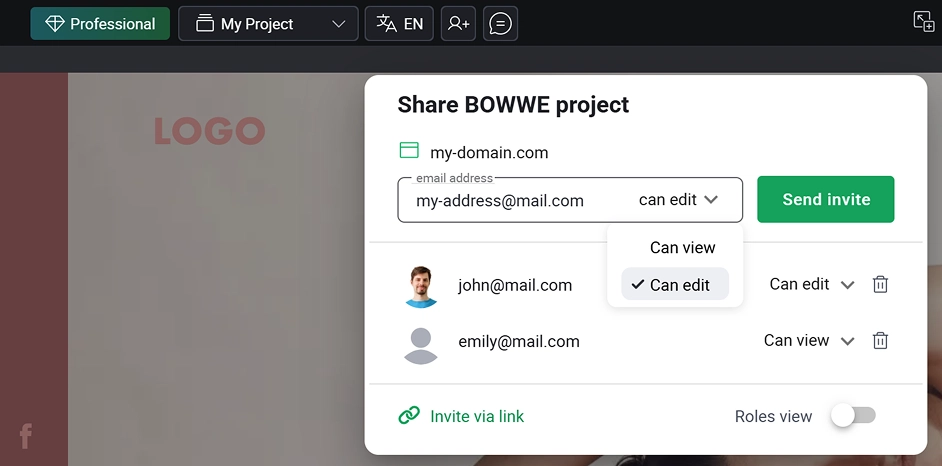
Select the type of permission you want to give. You can also switch the role view and assign the role.
5
Send an invite. The invited people will have to confirm it via sent e-mail under their addresses to access the project with the new permissions.
Reminder:
Alternatively, you can send an invite via link to multiple people, which automatically grants Guest permission, so ability to only view and comment.
How to manage project members
1
Go to your dashboard.
2
Open Actions of the project you wish to edit members.
3
Go to Project settings.
4
In the domain settings tab, select Users.
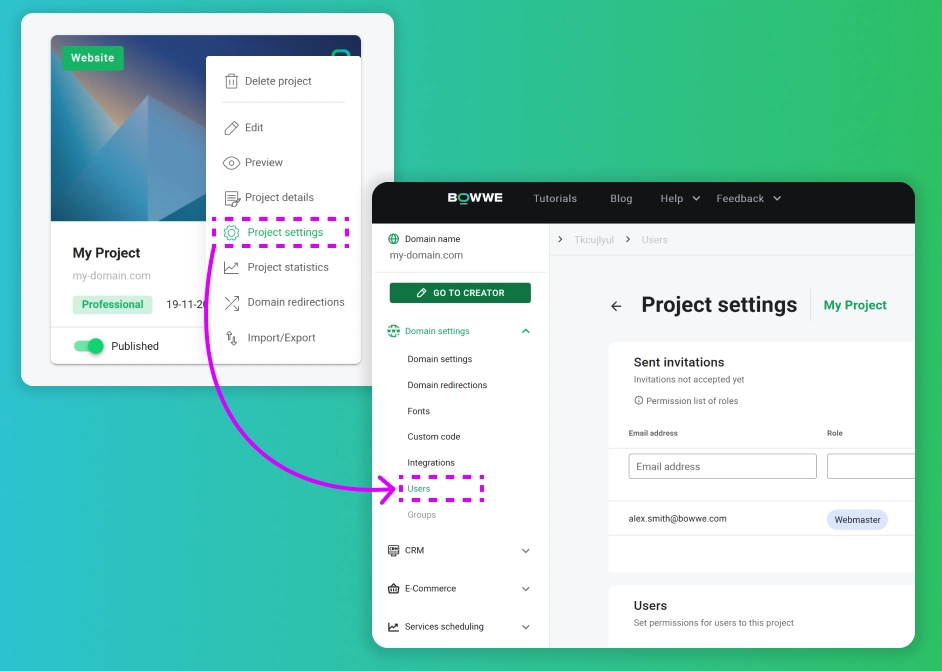
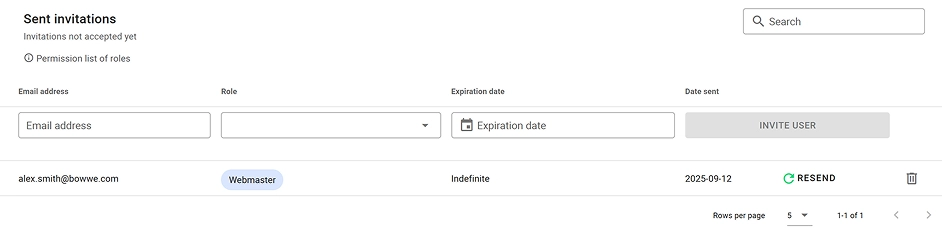
In the Sent Invitations tab, you can send an invitation to a new user by providing the account email, the role they’re meant to have, and the expiration date for how long you want them to have access (if unspecified, it will be set to Indefinite).
You can also see the invites that have been sent and are now pending. If you choose so, you can refresh the invite message sent to that person, or delete the invite entirely.
You can also see the invites that have been sent and are now pending. If you choose so, you can refresh the invite message sent to that person, or delete the invite entirely.
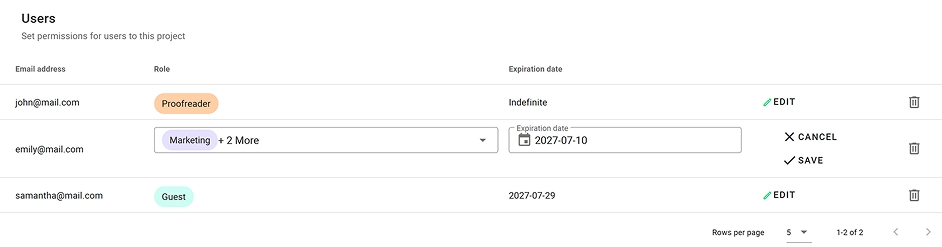
In the Users tab, you can see all the existing collaborators, and you can edit their roles.
Members pricing
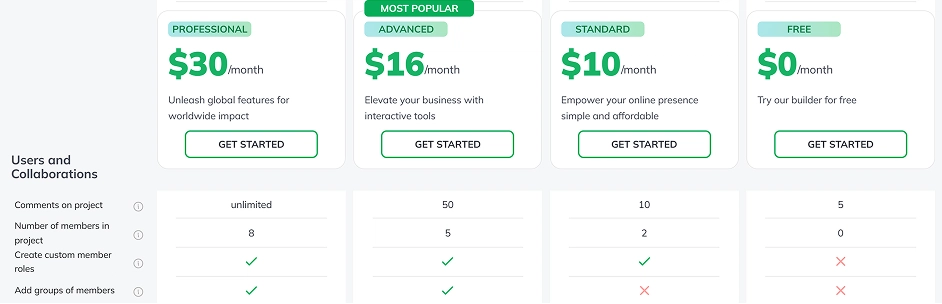
The members function is available for the paid projects and allows for up to 8 members to help you manage your project and up to 10 guests, who can only view your work in progress without ability to edit. The number of custom roles is unlimited, but is also available only on paid projects

Congratulations!
Now you know how to add users to your project!